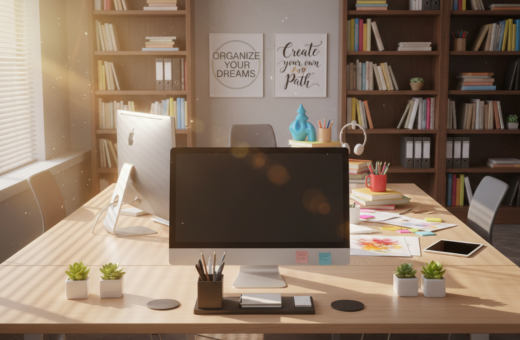
Office ergonomics for office work means designing a workspace that fits the user, not the other way around. This short guide helps readers place their monitor and keyboard to reduce strain and boost comfort.
Proper monitor placement makes the screen the focal point of the setup. A correct height and distance cut down on neck and eye stress. Adjusting the keyboard together with the screen keeps the body aligned and lowers the risk of repetitive injuries.
Simple adjustments to chair height, screen tilt, and keyboard reach can ease discomfort in the shoulders and back. Small changes add up over time and help someone stay focused through a long day.
Good positioning protects the spine and improves productivity. Readers will learn practical steps to craft a supportive workspace that fits their unique body and reduces physical toll while using a computer.
Understanding the Importance of Desk Ergonomics for Office Work
Small design flaws in a workstation can lead to lasting pain. The Washington State Office Ergonomic Research finds that WMSDs make up the largest class of injury claims among office employees.
WMSDs cause over 70,000 lost workdays each year and cost State Fund employers more than $12 million annually. This shows why ergonomics matters in daily setups.
When a chair and desk are misaligned, the spine endures prolonged tension. That strain often shows up as persistent lower back and shoulder pain.
Many people treat aches as temporary until symptoms become severe. Investing in a better workstation reduces injury claim costs and helps people stay healthy.
- The Washington State research highlights WMSDs as the leading injury class.
- Poorly designed chairs often fail to support the natural curvature of the spine.
- Proper setup can cut the roughly 60% share of injury claim costs tied to these disorders.
The Science of Neutral Body Positioning
Neutral posture means the neck isn’t contorted, the arms aren’t extended, the wrists aren’t bent, and the spine isn’t twisted. This alignment lets muscles relax and reduces fatigue during long periods at a screen.
Defining neutral posture
Maintaining a neutral body position keeps the neck, shoulders, and spine aligned. When seated in a supportive chair, the pelvis and lower back stay stable and the upper body rests with less effort.
Avoiding repetitive strain
Proper monitor placement prevents the neck from craning. Keeping wrists straight and shoulders relaxed lowers the chance of inflammation and joint stiffness.
- Neutral posture reduces repetitive strain injuries in the upper body.
- A good chair supports the spine and prevents slouching.
- Correct monitor height stops the neck from bending forward.
- Relaxed shoulders and straight wrists cut down on joint stress.
Optimizing Your Monitor Height and Viewing Distance
Setting your screen at the right height makes visual tasks easier and less tiring. A few simple adjustments to height, tilt, and distance cut down on neck and shoulder strain and lower the visual effort needed across the day.
Determining Eye Level
To maintain a healthy eye level, set the top of the monitor at or slightly below the user’s natural line of sight. Research shows eyes naturally look down between 15–30 degrees.
Tip: When seated upright, the upper third of the screen should sit near that line.
Calculating Viewing Distance
Place the screen at about an arm length away. Most users find 40–70 cm (15–27 inches) comfortable.
If text is hard to read at that distance, increase the font size rather than moving the screen closer. This preserves healthy viewing distance and reduces eye strain.
Adjusting Screen Tilt
Tilt the screen 10–20 degrees away from the body to match the natural downward gaze of about 15 degrees. This change aligns the eyes and reduces neck flexion.
When using a laptop, pair it with an external monitor or a stand so the height and tilt can be set independently.
- Top of monitor at or slightly below eye level.
- Keep the display an arm length (20–30 inches) away.
- Tilt 10–20 degrees to match a 15° downward gaze.
- Increase font size instead of shortening viewing distance.
Selecting the Right Ergonomic Chair
A well-made chair gives targeted support where the spine needs it most.
The Herman Miller Aeron and Steelcase Gesture are strong examples to consider. The Aeron offers adjustable lumbar support that helps keep the natural S curve of the back. The Gesture adapts to many body types and has a plush seat cushion for lasting comfort.
When choosing a chair, confirm the seat height lets the feet rest flat on the floor or on a footrest. Adjust so thighs sit parallel to the floor. This spreads pressure evenly across the seat pan and reduces strain on the back.
Look for breathable materials and a cushioned back. If a chair lacks lumbar support, a lumbar pillow fills the gap and encourages better posture. A good chair also swivels easily so users can reach items without overextending.
- Adjustable height so feet stay flat on the floor or footrest.
- Solid lumbar support to protect the lower back.
- Breathable padding and smooth swivel motion for daily comfort.
Proper Keyboard and Mouse Placement
Correct placement of input devices keeps the arms relaxed and reduces daily fatigue.
The keyboard and mouse should sit so the elbows bend at about 90 degrees. Standard desk heights of 29.5 inches are often too high and match the seated elbow height of a 6’4″ male. This means many people must lower their desk or raise their chair and use a footrest.
Wrist and Palm Support
To protect the wrists, place the keyboard and mouse at the same level as the resting elbow. A padded palm support helps keep wrists straight and avoids pressure on soft tissues.
- Keep both devices close to the body to prevent shrugging of the shoulders.
- Align the keyboard’s center with the midline of the body to stop trunk rotation and repetitive strain.
- If using a laptop, connect an external keyboard mouse and position them at the correct desk height.
- Adjust input placement and desk height to reduce tension in hands, wrists, and the upper back.
For a deeper setup guide, see this ergonomic workstation guide.
Managing Lighting and Screen Glare
Bright, balanced lighting cuts glare and keeps the screen legible across the day. Proper light levels reduce eye strain and limit the need to crane the neck to read small text.
People in their 60s often need up to 250% more contrast than those in their 20s because the corneal lens changes with age. The team should aim for higher contrast and adjustable lighting so everyone sees content clearly.
The American Optometric Association recommends the 20-20-20 rule: every 20 minutes, look at something 20 feet away for 20 seconds. This simple habit eases eye fatigue during long sessions at a monitor.
Practical setup tips:
- Place the monitor perpendicular to windows to avoid reflections that cause glare and force an awkward neck angle.
- Use a controllable task light with a shaded bulb so the source isn’t visible and direct glare is prevented.
- Combine overhead lighting with a task lamp when natural light is lacking to reduce shadows over the desk surface.
The Benefits of Alternating Between Sitting and Standing
Moving from a seated posture to standing at regular intervals supports both comfort and focus.
Dr. Alan Hedge suggests a simple rhythm: sit 16 minutes, stand 8 minutes, then stretch 2 minutes every 30 minutes. This cycle helps keep the cardiovascular system active and lowers pressure on the lower back.
Short position changes improve circulation and reduce stiffness in the wrists, shoulders, and spine. A height-adjustable desk makes it easy to keep the keyboard and mouse at the correct desk height while changing postures.
When standing, feet should be firmly planted on the floor and shoulders relaxed. Chairs that allow varied posture without constant manual adjustment give steady support during long stretches in the same position.
- Alternating reduces pressure on the lower back and boosts circulation.
- Frequent changes prevent stiffness and protect wrists and shoulders.
- Varying the setup often burns more calories and raises energy across the workday.
“The best posture is the next posture.”
Incorporating Microbreaks and Movement
Brief pauses every 20–30 minutes can reduce cumulative strain and boost focus.
A microbreak is a 30–60 second pause from the computer. During this time, a person can stand, walk, or stretch. These small breaks reset muscles and calm the mind.
The 20-20-20 rule helps protect the eye: every 20 minutes, look at something 20 feet away for 20 seconds. This short habit lowers eye fatigue across the day.
Taking 2–3 microbreaks per hour reduces fatigue and lowers the risk of neck and shoulder tension. Gentle stretches for the neck, wrists, and shoulders ease tightness quickly.
- Move the body often to keep blood flowing to the hands and feet.
- Even a short walk to get water breaks up long sitting periods.
- Combine microbreaks with light breathing to restore focus and energy.
For practical routines and more movement ideas, see these movement tips. Small steps spread through the workday keep the body resilient and reduce overall strain.
Essential Accessories for a Comfortable Workspace
A few well-chosen accessories can convert a plain workstation into a healthy, productive zone. Small tools let someone place their monitor and keyboard at a correct height and arm length away.
Stands and arms matter. The Rain Design iLevel 2 is a sturdy laptop stand that raises a laptop screen to the ideal top line. The Herman Miller Jarvis Single Monitor Arm gives fine height control for most monitors and makes adjustments quick.
Input tools also affect comfort. A high-quality keyboard mouse set reduces wrist strain and keeps hands relaxed while typing and pointing.
- Use a laptop stand or monitor arm to get the screen the right distance and height.
- Choose an ergonomic keyboard mouse set that fits hand size and reduces bending at the wrist.
- Pick a chair with adjustable lumbar support to protect the lower spine during long sessions.
- Add a footrest when feet do not rest flat; small props improve posture immediately.
Organize frequently used items within easy reach so arms do not overextend. Investing in these accessories helps each person customize a setup that fits their body and daily tasks.
“The right accessory turns a generic space into a personalized, safe workstation.”
Conclusion
A thoughtful setup that balances screen height, input reach, and seating reduces daily strain and improves stamina. Small, consistent adjustments to the monitor, chair, keyboard, and mouse add up over time.
Prioritize neutral alignment so the top of the screen sits near eye level and the arms rest without tension. Move often: microbreaks and short stretches reset posture throughout the day and protect the wrists and back.
Final takeaway: investing time in a proper workspace setup brings lasting comfort and fewer repetitive injuries. Simple changes now will pay dividends in comfort and productivity down the line.