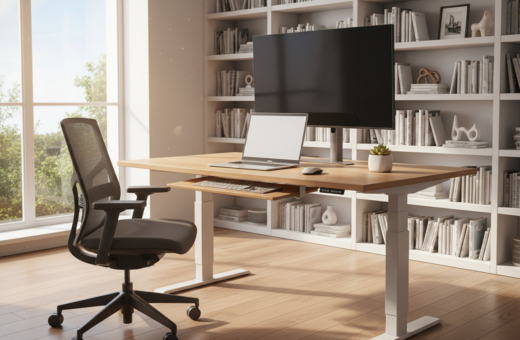
Modern work habits strain the upper body. Americans now spend about seven hours a day on screens, a figure cited by Dr. K. Daniel Riew and DataPortal. This steady screen time makes simple workstation choices important for long-term health.
Adjusting monitor height and the keyboard position can reduce muscle tension and lower the risk of chronic neck and shoulder pain. Small changes to chair height and screen level often relieve pressure on the spine and upper back.
Practical tweaks matter. Evidence shows vertical height adjustments can cut upper-quadrant symptoms, so employers and people who work at a desk should test modest setup changes. Read the study on vertical adjustments for more detail about chair and screen height effects.
Spending a few minutes each day on simple exercises and a brief workstation check can protect posture and keep wrists, shoulders, and the head aligned for the long term.
Understanding the Mechanics of Tech Neck
Sustained forward head posture during daily screen use shifts extra load onto the cervical muscles. This raises the chance of chronic neck pain and sore upper back areas.
Symptoms of Muscle Strain
When people gaze down at a computer for long hours, the neck muscles must contract to hold the head in place. This often causes tightness between the shoulder blades and stiffness in the upper back.
Chronic muscle strain can bring headaches and persistent pain. Over time, the discs of the spine may wear faster if posture is not corrected.
The Role of Gravity on the Spine
Tilting the head just 45 degrees creates a strain neck effect like lifting a 50-pound bag of potatoes.
Gravity increases load on the cervical spine the further the head leans forward. Good ergonomics in the office and simple posture checks during the work day reduce pressure on the lower back and neck back muscles.
- Short breaks help relax strained muscles.
- Ergonomics adjustments ease upper back and lower back stress.
- Awareness of head alignment prevents long-term damage.
The Impact of Screen Height on Cervical Spine Health
When a monitor sits above or below eye level, users tilt their head and change how the cervical spine bears weight. This increases load on upper back muscles and raises the chance of chronic neck discomfort.
Simple adjustments can keep the head neutral and lower cumulative strain during long computer hours. Raising the screen so the top inch aligns with eye level helps maintain good posture and reduces stress across the spine and lower back.
“Athletico recommends placing your monitor 20 to 40 inches away to maintain a healthy posture.”
- Keep the monitor centered directly in front of the body to avoid twisting and shortening neck back muscles.
- Set the top of the screen at eye level and ensure feet are flat on the floor for stable support.
- Avoid leaning in during long periods at a desk; take micro-breaks to relax muscles and reset posture.
- Many people report less pain in the neck and lower back after raising their screen to eye level.
Optimizing Keyboard Position Neck Pain Prevention
A well-set typing area reduces tension in the shoulders and upper back. Small changes to how hands and wrists sit at the desk can prevent long-term discomfort and keep posture steady during computer work.
Maintaining Neutral Wrist Angles
Athletico recommends placing the input surface so elbows rest at about a 90-degree angle. This keeps the forearms level and helps the head remain balanced over the spine.
Neutral wrists are key. When the hands bend up or down, joints and muscles strain, which raises the risk of chronic neck issues and hand inflammation.
- Keep the keyboard centered to avoid twisting the back and shoulders.
- Use a wrist rest that supports the palm, not the wrist, to maintain proper wrists alignment.
- Align the monitor and input area so the eye level and hands work together to support good posture.
“Correct ergonomics in the office workstation help reduce cumulative stress from long screen time.”
Adjusting Your Chair for Lumbar Support
Small chair tweaks change how body weight loads the spine during computer work. A proper seat eases strain across the lower back and helps the neck and shoulders relax.
Dr. K. Daniel Riew recommends a chair that reclines about 25 to 30 degrees. This tilt reduces force on the spine and shifts weight off discs and muscles.
Good ergonomics also mean your feet rest flat on the floor for stability. When the feet are supported, the body stays balanced and the desk setup works better.
- Choose a chair that conforms to the natural curve of the lower back for sustained support.
- Set seat height so forearms rest comfortably; this prevents tension that travels from shoulders to the neck.
- Lean back slightly during long tasks to allow neck muscles to relax and reduce lower back load.
“A chair reclining 25 to 30 degrees provides the best lumbar support for your lower back.”
Correctly setting a chair is a simple, high-impact step in office ergonomics. It protects the spine, reduces chronic pain risk, and improves posture across a full workday.
Proper Mouse Placement and Arm Alignment
Keeping the mouse within easy reach prevents repetitive strain and helps keep the upper body relaxed. Athletico advises placing the device close to the keyboard so the shoulder muscles are not overused.
Small shifts matter. If one reaches for the mouse, the shoulder and upper back must compensate. That adds risk of shoulder pain and can trickle into the neck and upper back over time.
Set the mouse at the same level as the input surface so the arms stay close to the body. Adjust the chair and desk so forearms rest flat; this supports wrists and reduces strain during long computer time.
- Keep the mouse near the primary keys to limit reach and fatigue.
- Position the arm so the elbow stays near the torso; avoid lifting the shoulder.
- Organize the desk to make the mouse easy to access throughout the workday.
“Minimizing arm distance to the mouse protects the body from cumulative strain during long office hours.”
Managing Telephone Use to Reduce Shoulder Strain
Frequent phone cradling during calls forces shoulder muscles into awkward holds that add strain over the workday.
Athletico recommends using a speakerphone or headset for long conversations to avoid pinching the handset between the head and shoulder.
Cradling a phone is a common cause of severe neck pain and muscle strain. When someone holds a call with one side of the body, the shoulders and upper back tighten. This can lead to chronic shoulder pain and stress on the back over time.
Hands-free options keep the head neutral and let the body relax. A headset also frees both hands for tasks at a desk or computer, which reduces awkward reaches for the mouse or keyboard.
“Use a headset or speakerphone during long calls to protect posture and lessen cumulative strain.”
- Arrange the chair and desk so the phone is easy to reach without twisting the torso.
- Avoid cradling the handset; switch to hands-free for calls longer than a few minutes.
- Managing phone use reduces daily stress on muscles and helps recovery between tasks.
Good ergonomics while on the phone is as important as monitor and desk setup. Proper habits protect the spine and keep shoulders balanced throughout the workday.
Incorporating Movement Breaks Throughout the Day
Small bursts of activity through the day help the body reset and reduce cumulative strain from screens. Brief movement breaks protect the spine and ease tension in the shoulders and back.
A regular routine of short breaks preserves posture and supports overall health. Standing, walking, or light stretching every so often keeps blood flowing and muscles active.
Benefits of Aerobic Activity
Dr. K. Daniel Riew recommends 20 to 30 minutes of aerobic exercise three or four times a week to help nourish the spine and reduce inflammation.
This level of exercise lowers the risk of spinal degeneration and improves posture during long work hours.
Frequency of Desk Breaks
- Get up and move every 15 to 30 minutes to prevent neck and back pain.
- Use breaks to stand, stretch, or walk for a few minutes to release tension that builds while using a computer.
- Short, frequent activity improves circulation and reduces the risk from long sitting periods for heart and musculoskeletal health.
“Proper ergonomics in your office workstation include the habit of standing up to stretch your neck and back throughout the day.”
Practical tip: set a timer for 20-minute cycles or use movement prompts on a phone. These cues help maintain good posture, protect the spine, and keep the body feeling agile during a busy work day.
Essential Range of Motion Exercises
A brief set of controlled movements restores flexibility and supports spinal health.
Regular exercises improve posture and reduce daily pain that builds from long screen use. These moves take only a few minutes and fit easily into an office routine.
Practice example: turn the head slowly in every direction to stretch the neck muscles. Perform 5 to 10 gentle rotations each way to ease stiffness.
Dr. K. Daniel Riew recommends linking the hands behind the head and extending the head backward against gentle resistance. Hold for a few seconds, then release. This simple exercise strengthens muscles while protecting the spine.
- Perform range-of-motion exercises 2–3 times daily for best results.
- Stretch the neck and back to prevent buildup of painful tension.
- Move carefully—over-strengthening can cause issues later in life.
“Taking a few minutes to stretch the neck and back is a proactive way to protect your spine from the stresses of work.”
When to Seek Professional Medical Advice
Seek medical advice when symptoms linger despite ergonomic fixes and regular exercises. Early evaluation can stop minor issues from becoming major problems.
Dr. K. Daniel Riew recommends seeing a physical medicine and rehabilitation doctor (a physiatrist) first. These specialists focus on treating bone, joint, and muscle concerns without surgery.
See a clinician promptly if you have constant numbness or weakness in an arm. That may signal a pinched nerve and increases the risk of lasting harm.
- Persistent neck pain or ongoing back discomfort that does not improve with office adjustments.
- New numbness, tingling, or loss of strength in the arms or hands.
- Chronic strain in the shoulders or upper muscles that limits daily tasks.
- A doctor can prescribe targeted exercise plans and non-operative treatments.
- Early care lowers the chance of needing surgery later on.
“A physiatrist can often treat symptoms without surgical intervention.”
Conclusion
Combining ergonomic tweaks with short movement breaks reduces cumulative strain from desk work. Small changes to monitor height, chair tilt, and the keyboard area help the body stay balanced during a long work day.
Regular checks and brief stretches every few minutes ease tension in the back and lower back. Keeping the head neutral and the eye line near the screen top preserves good posture and lowers the chance of neck pain.
If discomfort continues, seek professional medical advice. Simple setup habits and steady movement make office time more productive and keep the body ready for each day at the computer.