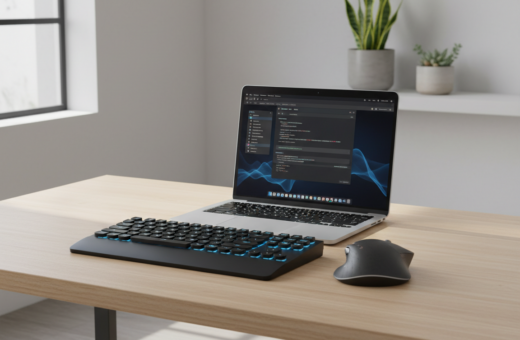
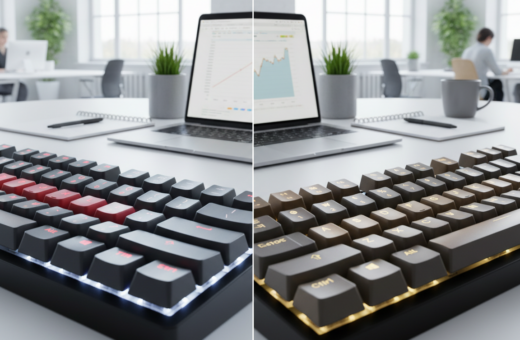
Many professionals spend years refining their typing setup to ease chronic wrist pain caused by standard QWERTY designs. In 1874, E. Remington and Sons released the Remington 1, which set the early standard. Thomas Edison even noted that letters would wander by tiny amounts on early machines.
The design of a modern keyboard can push the hands into awkward positions and cause fatigue during long time at the desk. By trying alternative layouts and custom layers, people can shift movement to stronger fingers and cut effort. Community forums often share examples that show how one change, like remapping the Shift or adding a number layer, improves speed and comfort.
This article walks through history, simple tests, and practical changes that help readers find a better fit. The goal is clear: reduce strain, boost efficiency, and make typing a less painful part of the day.
The Origins of the QWERTY Standard
What made QWERTY stick had less to do with ideal finger motion and more to do with market momentum. Early makers chose designs that reduced mechanical jams and fit existing manufacturing methods. Those choices shaped how people learned to type and how keys were arranged across machines.
The Remington Legacy
The Remington 1, released in 1874, set a lasting precedent. Its configuration placed common letters in positions that balanced typebar collisions.
That single model influenced many later keyboards and helped standardize the three-row approach still seen today.
The Typewriter Trust
In 1893 major makers—Remington, Caligraph, Yost, Densmore, and Smith-Premier—formed the Typewriter Trust to keep a consistent standard.
Later, Teletype’s adoption in 1910 accelerated the spread of QWERTY into computing across the US, UK, and Japan.
- Practical limits: early machines often lacked number keys, so users reused letters to indicate digits.
- Habit and speed: decades of practice built muscle memory that resisted change.
- Modern impact: many people now note extra strain on the left hand and uneven key frequency across the home row.
Why Your Current Keyboard Layout Causes Fatigue
Frequent reach and repeat motions on standard keys create real fatigue across fingers and wrists. A typical qwerty design loads many common letters onto the left side, so the left hand does more of the heavy lifting during long typing sessions.
Most of the high-traffic keys sit off the home row, forcing extra travel and effort from weak fingers like the pinky and index. This constant movement leads to soreness and slow declines in efficiency over time.
Heatmaps of normal typing show clear imbalance. Hands drift, the pinky overworks, and the lack of thumb modifiers means awkward combos push more strain onto small fingers.
- Repetitive reaches cause wrist and pinky discomfort.
- Left-side dominance creates an uneven workload across hands.
- Off-row keys add needless movement and slow typing speed.
Recognizing these limits is the first step to finding a better approach. Changing the keyboard layout or adding a second layer can redistribute effort and improve long-term comfort and efficiency.
Understanding the Ergonomic Keyboard Layout for Work
A practical ergonomic keyboard layout centers common letters on the home row to shrink finger movement.
This design principle keeps high-use keys where fingers rest. That reduces travel and lowers fatigue during long typing time. It also encourages balanced use of both hands and cuts repeated reaches by the index and pinky.
Many modern keyboards use a split or ortholinear approach so each hand stays neutral. Designers often add a custom layer that holds navigation, numbers, and punctuation. That layer keeps modifiers like Shift and number keys within easy reach.
People who switch often report less wrist and finger pain after adaptation. A good configuration considers thumb use and the natural range of each finger. Investing time to learn one new setup can pay off in comfort and speed.
- Benefit: More keys on the home row means less movement.
- Tip: Add a navigation layer to reduce hand travel.
- Result: Steadier typing and fewer repetitive strain problems.
The Dvorak Approach to Typing Efficiency
Dvorak’s redesign aimed to shift the heaviest typing demands onto stronger fingers and reduce wasted movement. He introduced the idea in 1936 to prove an alternative could be faster and less tiring than QWERTY.
Core Principles of Hand Alternation
The Dvorak system puts the most common letters and bigrams on the home row so fingers travel less. Vowels and frequent symbols sit on the left while high-use consonants favor the right hand.
Key ideas include alternating hands to spread the workload, keeping rare letters on the bottom row, and assuming the right hand will take slightly more load because many people are right-dominant.
- Home row focus reduces finger travel and can lower fatigue.
- Alternation encourages smoother typing between hands and fewer awkward reaches.
- Adapting to Dvorak takes time, but many people report less wrist and finger strain in the long run.
Although early studies by Dr. August Dvorak faced criticism, the design remains a clear example of how thoughtful key position and a dedicated number or symbol layer can challenge the status quo of standard keyboards.
Transitioning with the Colemak Layout
Colemak eases the move from QWERTY by keeping many letters in familiar positions while bringing frequent characters closer to the home row.
The design reduces finger travel and spreads work more evenly between the hands. It keeps punctuation in easy spots, which helps those who type code or prose.
Colemak Mod DH, released in 2014, further shifts pressure away from central columns and the index fingers by moving some keys to the upper row.
- Less finger travel because common keys sit nearer the home row.
- Accessible punctuation makes the transition easier than Dvorak.
- Mod DH targets index-finger strain by shifting the heatmap upward.
- Many users regain previous speed within weeks with steady practice.
Readers who want a practical way to try alternative layouts can learn more about other typing systems and compare options before committing to a new layer or number row shift.
Exploring the Workman and Norman Designs
Two notable post-Colemak systems rethink key placement to ease pressure on the most used digits. Both prioritize a stronger home row and aim to cut index-finger strain by moving common letters toward the middle fingers.
Workman Distribution
The Workman design, released in 2010, evolved from Colemak with one clear goal: reduce index overload.
It shifts many high-frequency letters to the middle fingers and evens out travel across both hands. That change yields a more balanced key distribution and fewer long reaches.
Norman Effort Reduction
The Norman system, from the early 2010s, measures effort differently and targets the middle and ring fingers.
Its creators claim a 46% reduction in typing effort versus standard QWERTY. Norman works well on split designs and eases pinky duty by moving several modifiers and less-used keys away.
- Both designs emphasize the home row to keep fingers comfortable.
- They offer alternative layers that reduce stretch and awkward reaches.
- No single option fits everyone; testing both helps users find the best fit.
Modern Innovations with Engram and Halmak
New typing systems now use data to place high-frequency n-grams where fingers move least.
The Engram project, launched in 2021, was built from scratch to optimize trigram and n-gram typing on split columnar designs. It focuses on efficient key position and minimizes travel by aligning common sequences with natural finger motion.
Halmak takes a different tack: AI analyzes user patterns and proposes an even distribution of keys that reduces pinky strain. Its central idea is to place punctuation and modifiers in the center to shorten reaches and simplify shifts.
Both systems favor a balanced home row and custom layer mapping. Users of split columnar hardware report less finger fatigue and smoother hand transitions after adapting to these designs.
- Engram: n-gram optimization for split columnar layouts.
- Halmak: AI-driven distribution that evens key load across fingers.
- Central punctuation and thoughtful shift placement reduce pinky stress.
Leveraging Community Tools for Custom Layouts
Community projects now let typists tailor keys to match their real text and habits. Carpalx is one of the best-known tools in this space.
Carpalx analyzes letter frequency in any corpus and suggests a better keyboard layout that fits a user’s language and style. Users upload books, code, or email to model true typing patterns.
The optimizer can produce surprising maps, such as the popular QGMLW result, which many find more comfortable than QWERTY. The project also documents its methods so newcomers can follow the math.
- It customizes key positions by frequency and hand effort.
- It creates layers that keep high-use symbols near the home row.
- The community shares examples and configs to speed adoption.
“Designing your own layout with data changes how you think about typing.”
Trying Carpalx helps anyone—from programmer to writer—find a tuned set of keys and a better shift strategy. It’s a practical step toward a personalized typing setup that reduces strain and boosts comfort.
The Role of Symmetry in Reducing Wrist Strain
Ortholinear grids remove staggered offsets and help hands move in straight, natural lines. This kind of symmetry reduces awkward wrist twists and evens the workload between both hands. It makes posture easier to maintain during long sessions.
The Benefits of Ortholinear Alignment
Ortholinear designs align keys in a grid so each column sits under its finger path. That simple change keeps the home row centered and cuts diagonal reaches that strain wrists.
Mirroring the right hand side creates balance. When both halves match, the body avoids leaning or twisting. Many users report less soreness after switching to a symmetric board like the Tsuka60.
- Predictable motion: hands move straight across rows and columns, lowering unexpected bends.
- Central punctuation: moving commas and periods toward the center shortens reaches and simplifies the shift process.
- Adjustment: a brief learning period pays off with steadier typing and reduced wrist fatigue.
Implementing Thumb Modifiers for Better Workflow
Thumb modifiers let users unlock entire extra layers while their hands stay planted on the home row.
Many programmable boards, such as Dymga models, make it simple to remap Enter or Backspace to the thumb. This moves heavy-duty actions away from weak fingers.
The thumb is powerful and often underused. Assigning a modifier to it gives instant access to arrow layers or symbol sets without stretching a pinky. Programmers especially gain quick access to brackets and navigation keys during long typing sessions.
- Less travel: keep hands on the row and reach more functions with a single thumb press.
- Better combos: two-hand chords let users perform complex commands quickly.
- Start simple: map one thumb key to Alt, learn it, then add layers.
- Long-term benefit: many users prefer this setup and find it hard to return to standard key maps.
Begin with one thumb modifier and build a second layer once it feels natural. Small steps make the transition smooth and keep finger and hand strain low while improving desktop navigation.
Shifting the Number Row and Function Keys
Moving the number row onto a thumb-activated layer keeps digits and shortcuts reachable while both hands stay on the home keys.
This approach maps the top row to a secondary layer so numbers double as function keys when held with a thumb modifier. Many users set F1–F10 to appear when the thumb is pressed, cutting the need to lift a hand.
Removing the reach to the top row reduces wrist and shoulder strain and speeds routine tasks like renaming files or switching windows. Using a layer also makes it simple to trigger Delete by using Shift+Backspace, avoiding the top-right corner.
- Less travel: hands remain on the home row, which lowers repeated strain.
- Flexible mapping: numbers can act as F-keys or shortcuts on demand.
- Personalized setup: customizing these keys creates a faster, more comfortable system.
“A thumb layer transforms the top row into a practical toolkit without leaving the typing position.”
The Anymak Concept for Compatible Ergonomics
Anymak rethinks common key positions so users get comfort without changing their whole typing system. It aims to balance ease and compatibility across different keyboard types.
Core idea: rearrange a few critical keys and add one-shot modifiers. That reduces finger stretch and keeps the home row clear.
Anymak removes the hard-to-reach B key from its usual spot and places heavy duties on bottom-row modifiers. This lets the thumb handle many functions and frees small fingers from repeated strain.
Compatibility is central. Anymak works with QWERTY, Colemak, and other alphanumeric layouts. Typists keep their known mapping while gaining better ergonomics and faster combos.
- One-shot modifiers remove the need to hold a modifier while pressing another key.
- Bottom-row modifiers replace dedicated keys and keep the home row uncluttered.
- Consistent fingering makes a standard keyboard behave more like a split, columnar-staggered board.
“Anymak makes small changes that yield big comfort gains without asking users to relearn their typing.”
Why Voice Recognition Might Change Everything
Natural language engines are reaching accuracy levels that make spoken input a real option for coding and prose. This shift could reduce repetitive strain by cutting time spent hitting physical keys.
Speech tools already handle long-form drafts and simple commands on phones and tablets while QWERTY stays common for precise tasks. As AI improves, dictation can replace many routine typing sessions and free a hand from constant motion.
Still, precision matters. Developers and editors often need exact key combos and small edits that remain faster with a tactile key. Many people use voice to draft and then switch to the home row to polish text.
- Voice can act as a secondary layer to generate content.
- Commands reduce repeated reaches and let a single hand rest.
- A hybrid approach blends speech with quick manual edits and a smart shift to shortcuts.
“A future that mixes voice and touch may offer the best path to lower strain and higher speed.”
Testing Your New Setup for Long-Term Comfort
Muscle memory needs time; sudden full-day switches often cause more strain than benefit.
Start with short sessions and increase them daily. Use the new home row for basic typing practice and check how each key feels after a half hour.
Pay attention to pain or tingling. If a particular finger or key consistently hurts, tweak that mapping or change the modifier assignment.
Tools like keyd and kanata let users swap a layer or test a new shift without rewriting firmware. Run quick edits, then type normally to see the real impact.
- Use short trials, then lengthen sessions as comfort grows.
- Experiment with layer and modifier placements until motion feels natural.
- Prioritize long-term comfort over raw speed during adaptation.
“Give your hands time to recover and adjust; small changes often win the day.”
Share progress with communities to get feedback and refined key maps. Over weeks, small adjustments add up and often yield a lasting, less painful typing experience.
Conclusion
A measured switch to a new key map can cut daily strain while keeping productivity steady.
They should start small and test a single change each week. Move common keys closer to the home row and add a thumb modifier on a secondary layer to keep hands steady.
Whether someone picks Dvorak, Colemak, Anymak, or a custom map, the aim is the same: balance effort across fingers and let the hand rest more often.
Keep adjusting a key here and a shift there until the setup feels natural. Investing time now protects long-term health and makes long sessions far less tiring.